
On this page

In 2025, WhatsApp launched an exciting new capability — WhatsApp Business Calling via Cloud API.
This feature enables businesses to make and receive calls over SIP or WebRTC directly through WhatsApp.
In this guide, we’ll walk through how to set up WhatsApp calling with your Business Account and how easy it is to integrate it with your PBX system using 3CX as an example.
⚠️ Important Notes#
- 3CX does not support WhatsApp as a trunk.
- 3CX no longer supports the generic SIP provider.
- We’ll use a Telxi trunk as a workaround to connect WhatsApp with 3CX.
- This is not working for outbound calls.
Prerequisites#
- Facebook App
- Verified Business
- Registered phone number with WhatsApp Manager
- Your business must have a messaging limit of at least 1000 business-initiated conversations in a rolling 24-hour period.
Ref#
🚀 Let’s Start#
1. Add a Telxi Trunk#
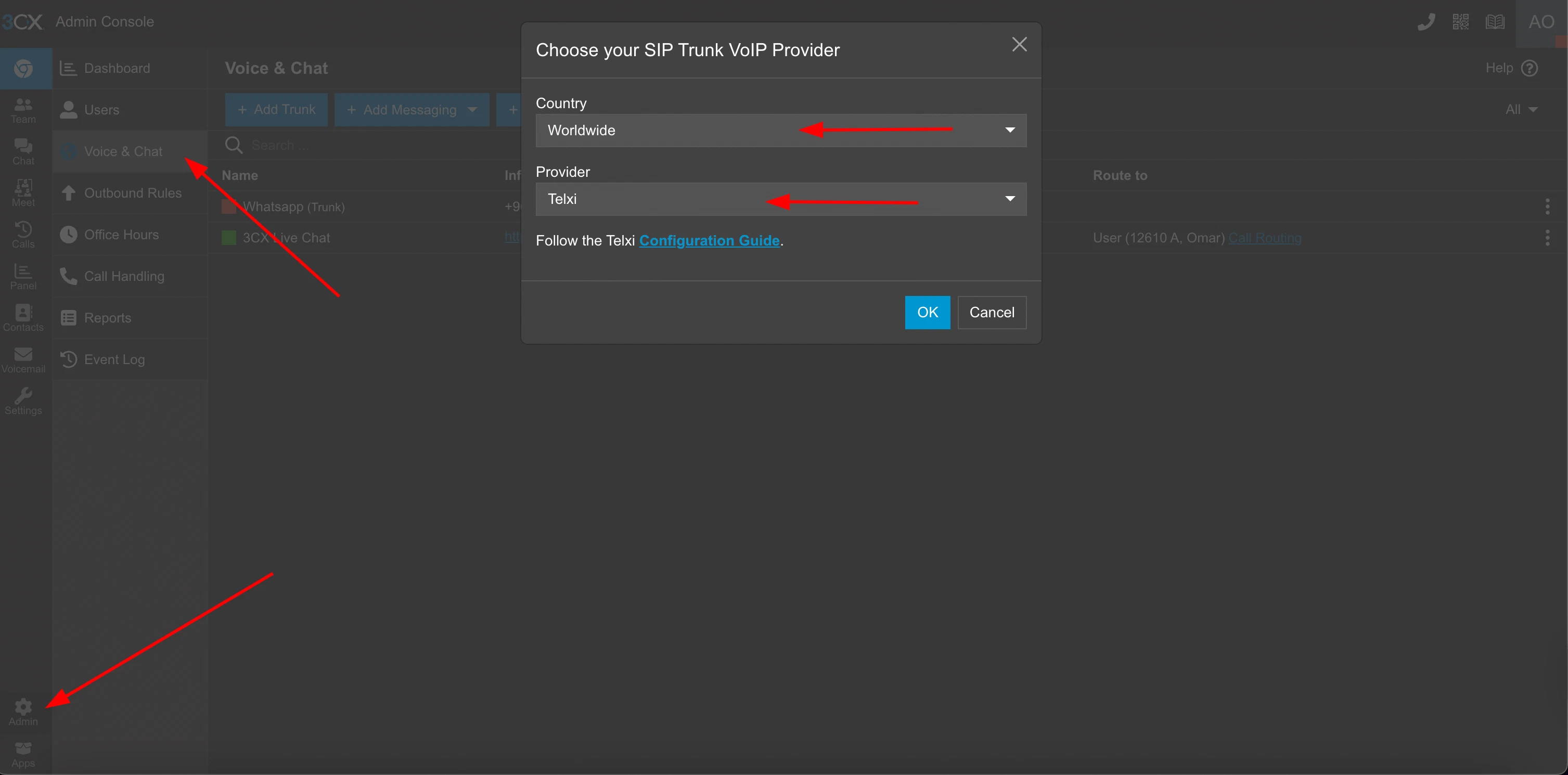
In your 3CX admin dashboard, go to Admin -> Voice & Chat -> Add Trunk -> Telxi.
2. Get Your 3CX IP Address#
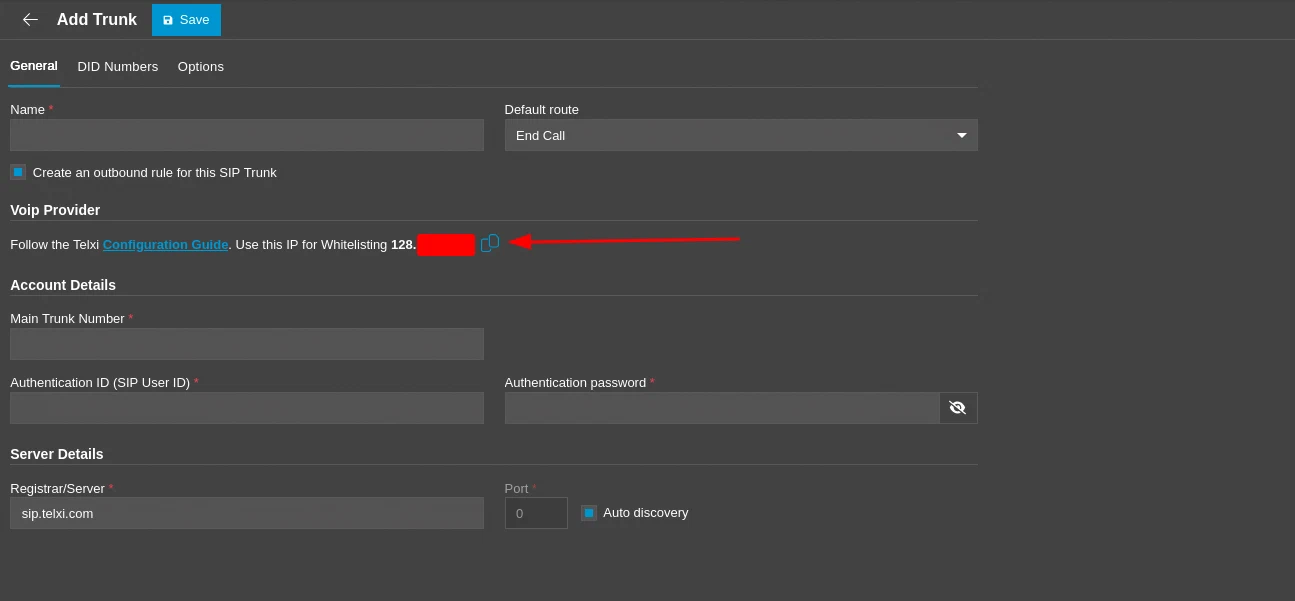
You’ll need your 3CX server’s public IP address for the WhatsApp API setup later.
3. Enable WhatsApp Calling via Meta API#
Make an HTTP request to Meta to set up your WhatsApp calling API settings.
curl --location 'https://graph.facebook.com/v23.0/{{phone_number_id}}/settings?access_token={{access_token}}' \
--header 'Content-Type: application/json' \
--data '{
    "calling": {
        "status": "ENABLED",
        "call_icon_visibility": "DEFAULT",
        "sip": {
            "status": "ENABLED",
            "servers": [
                {
                    "hostname": "{{3cx_ip}}",
                    "port": "5061",
                    "request_uri_user_params": {}
                }
            ]
        },
        "srtp_key_exchange_protocol": "SDES"
    }
}'
Replace the placeholders:
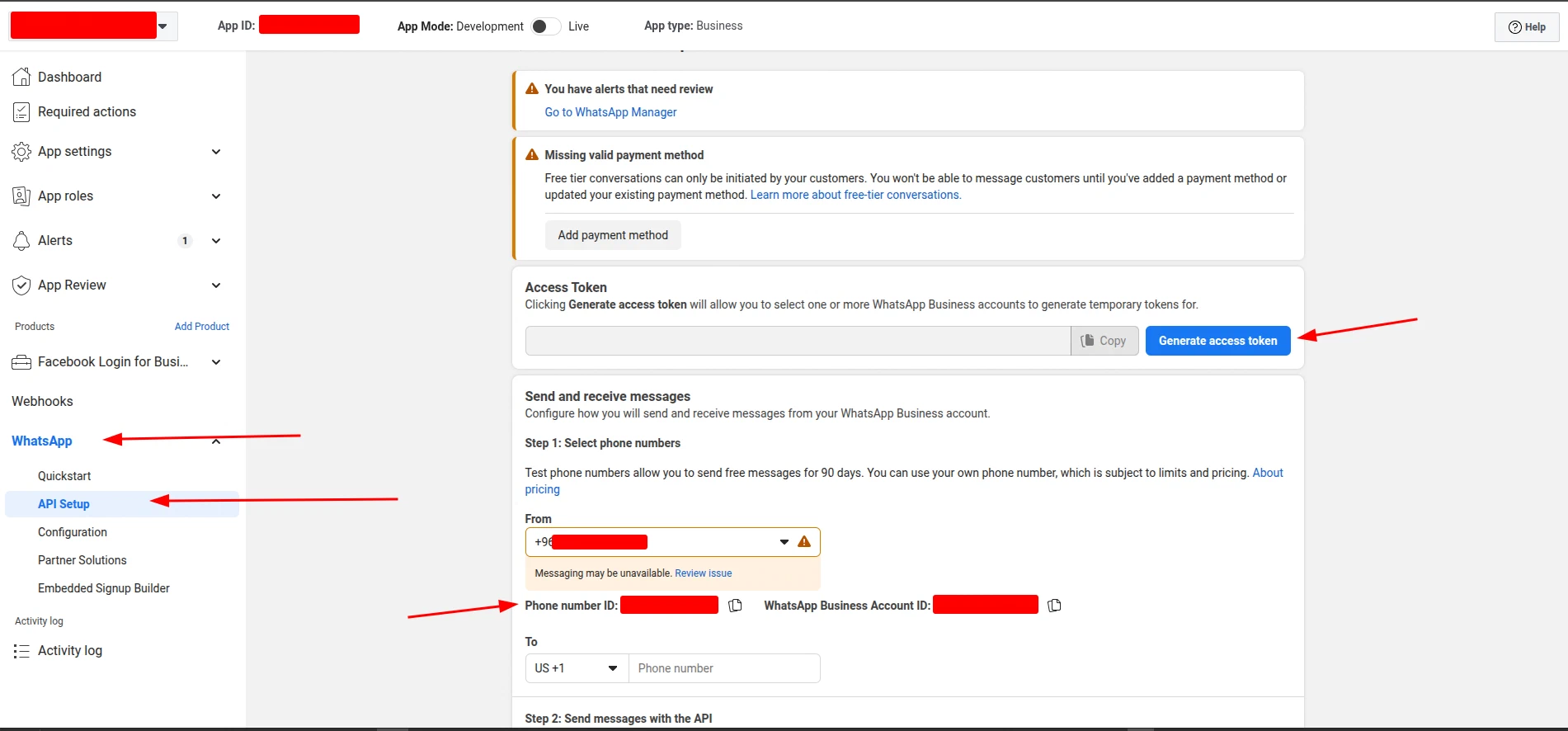
- phone_number_id → Found in your Facebook Developer App
- access_token → Your Facebook Developer App token
- 3cx_ip → The IP address from your 3CX trunk page
4. Retrieve the SIP User Password#
curl --location --request GET 'https://graph.facebook.com/v23.0/{{phone_number_id}}/settings?access_token={{access_token}}&include_sip_credentials=true' \
--header 'Content-Type: application/json'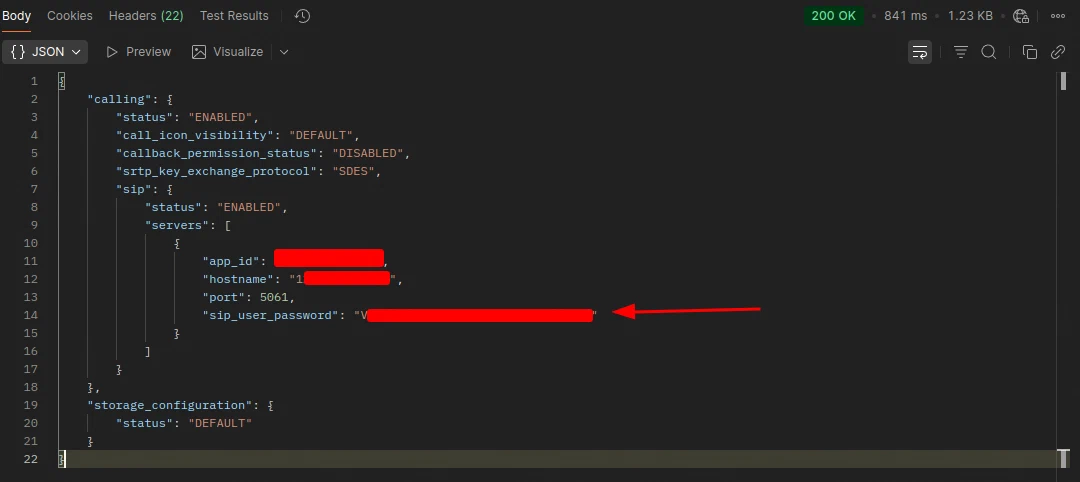
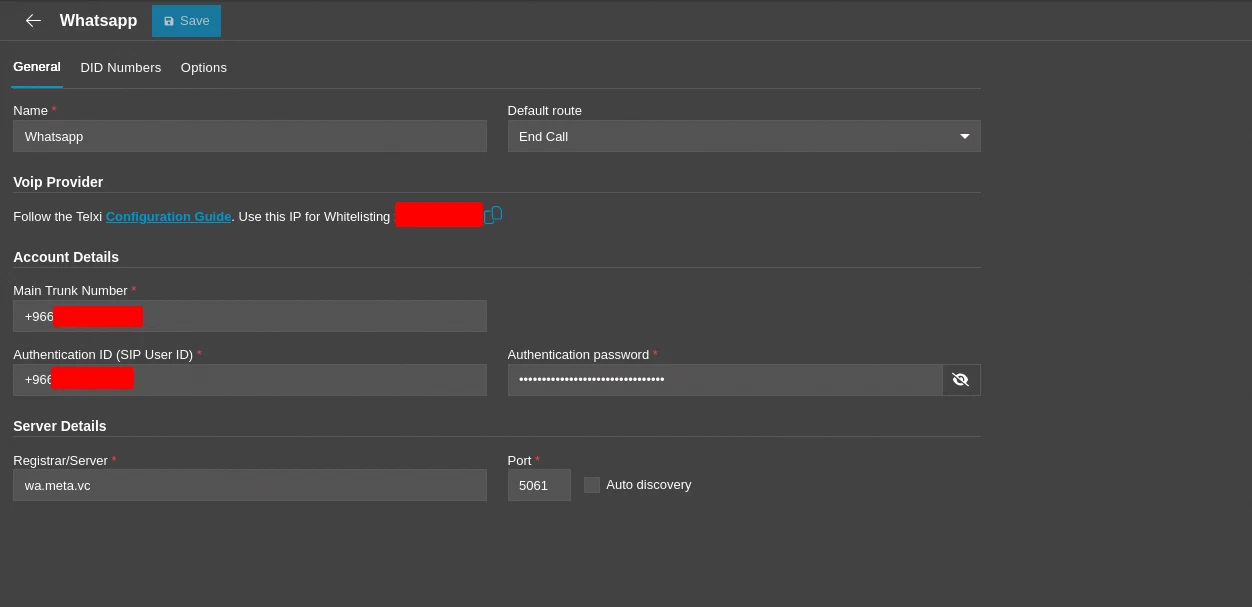
5. Complete the Trunk General Settings#
- Main Trunk Number: Your WhatsApp business phone number
- Authentication ID: Your WhatsApp business phone number
- Authentication Password: The password from Step 4
- Registrar server:
wa.meta.vc
6. Configure Trunk Options#
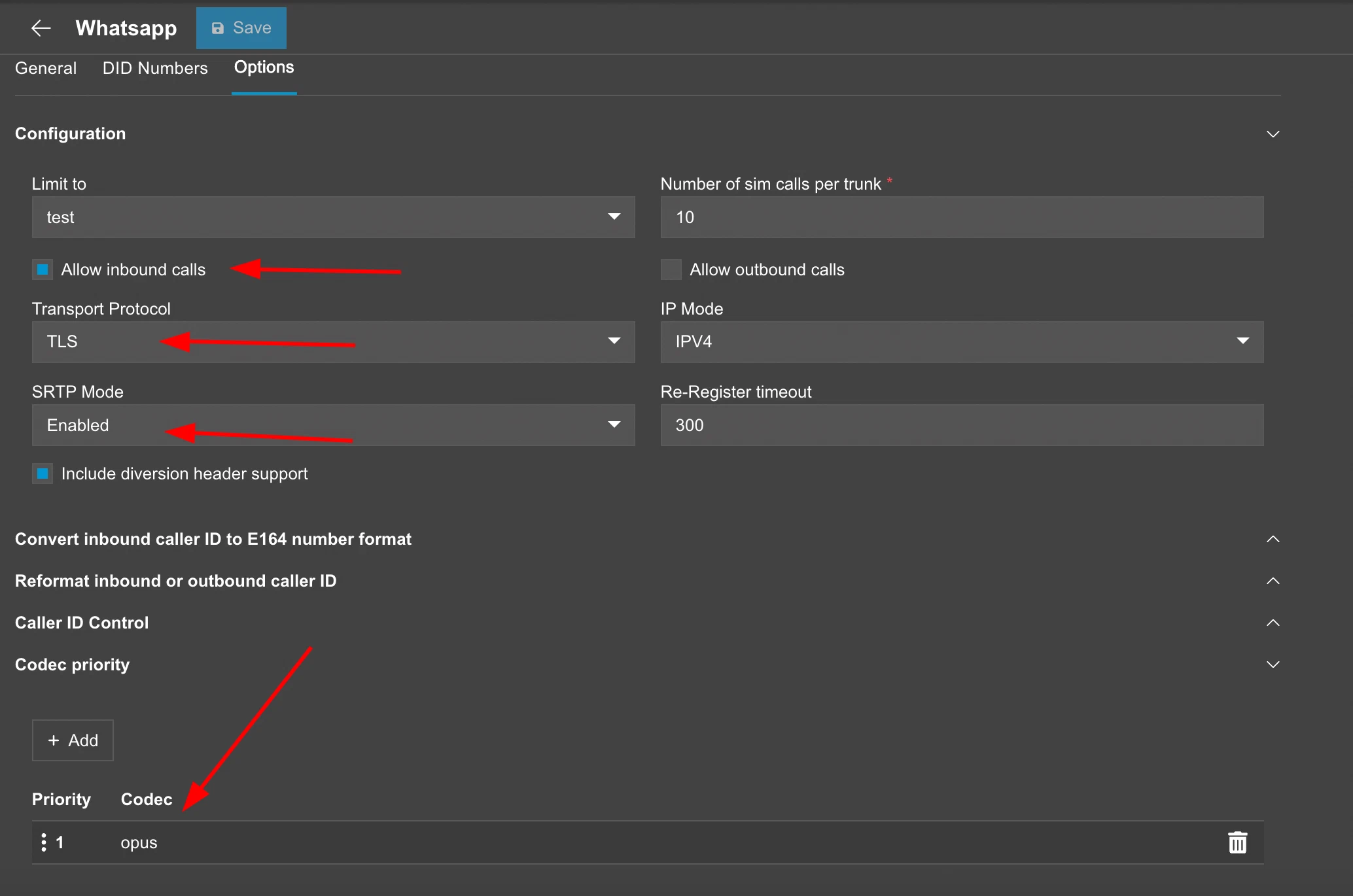
- Allow inbound calls.
- Disallow outbound calls (it doesn’t work with 3CX-supported providers).
- Transport Protocol: TLS.
- SRTP Mode: Enabled.
- Codec priority: OPUS only (remove others).
- Now save your trunk.
7. Set Up Inbound Call Handling#
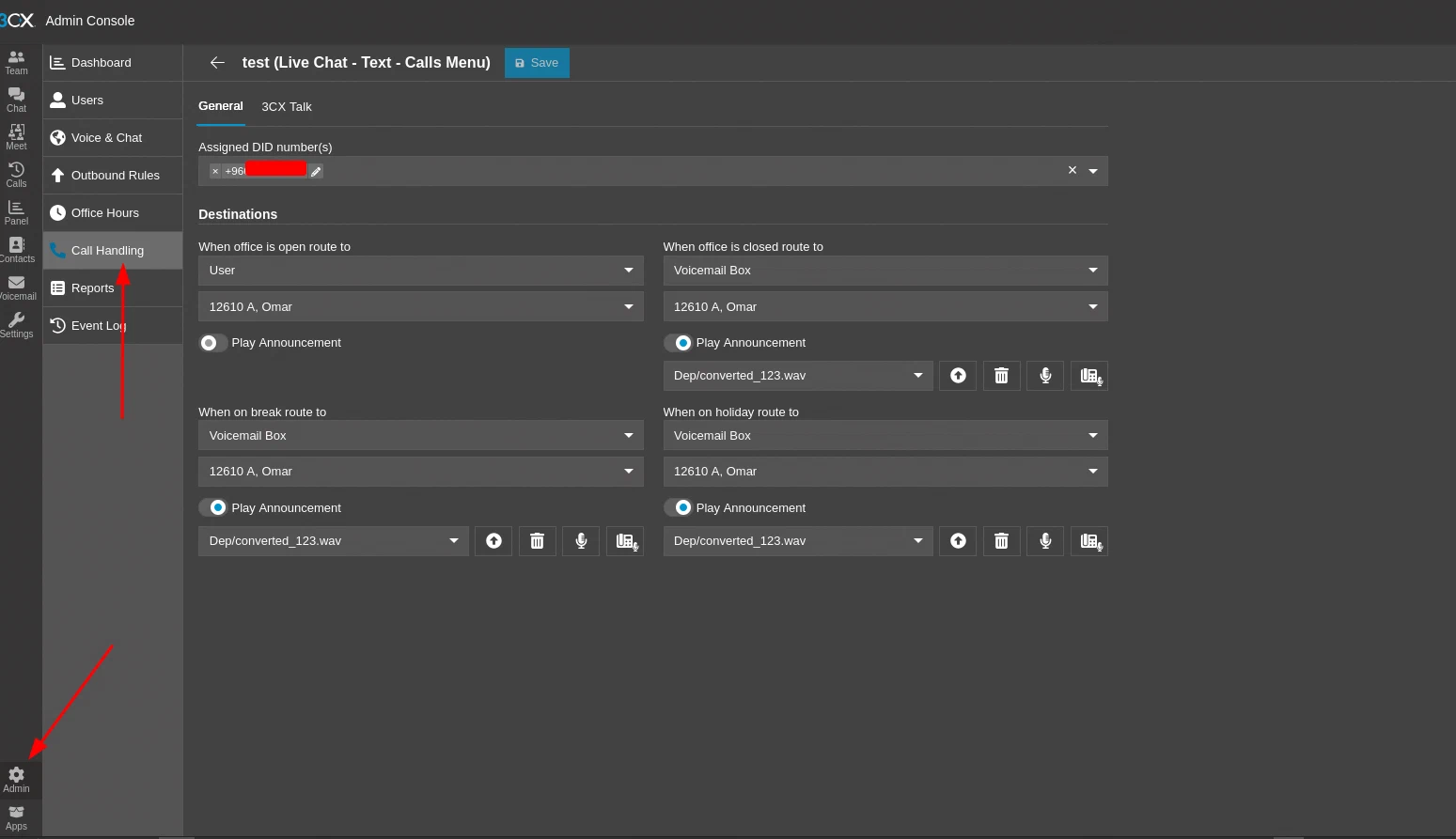
- Select the DID.
- Choose your preferred Destinations.
8. Call Your Number from WhatsApp#
Open your WhatsApp and make a call to your number.
If everything is configured correctly, you’ll receive the call directly through your 3CX PBX. 🎉